Selasa, 31 Juli 2007

New features in Amarok music player - Sneak peak, pretty playlist, raw plasma

Amarok is a versatile music player for Linux/Unix platforms. A couple of months back I had reviewed this versatile music player which has a lot more features than just playing music.

The next avatar of Amarok is Amarok2 which is going to see a number of enhancements such as :
  • A better integrated play list
  • Artists can be associated with more than one genre
  • Purchasing from Magnatune now supports using gift card codes as an alternative to credit cards.
  • A OpenGL support for album selector - I may add that anything related to OpenGL at present requires you to install the proprietary graphics drivers of Nvidia or ATI depending on the graphics card you use.
  • The big central area has just been switched to using Plasma, the new desktop and widget technology in KDE4.
Courtesy : Amarok blog.

Jumat, 27 Juli 2007

Fedora 7 installation screenshots

As you know, the Fedora team has released the latest offering of Fedora which is Fedora 7. It has been released as a liveCD as well as in the DVD format. These are the steps you go through while installing Fedora 7 using the liveCD installer.

Fig: Fedora LiveCD installer

Fig: Select the keyboard for your system

Fig: Choose the partitioning layout

Fig: Optionally, partition the hard disk by hand.

Fig: Install the grub boot loader

Fig: Choose to install grub either on MBR or on the first sector of boot partition (Optional step)

Fig: Configure and activate network devices.

Fig: Choose the time zone

Fig: Set the root password

Fig: Click the next button to begin installing Fedora 7

Fig: Installation in progress...

Fig: Installation complete.

Selasa, 24 Juli 2007

$100 laptop goes into production

BBC reports that the $100 laptop has gone into production and the first batch of machines should be put into the hands of children in developing countries as soon as by October 2007.

It is believed that initially the $100 laptop is going to cost nearly $176 but with ramped up production they hope to eventually bring the cost down to $100.

The laptop has a rugged, waterproof case and is as energy efficient as possible. In other words, it is built to cope with the harsh and remote conditions found in areas where it may be used, such as in deserts or on mountains.

Fig: The current price breakdown of the laptop

The laptop needs an order of magnitude less power than a typical laptop. That means you can power it by solar or human power like by using a foot pump. The $100 laptops will be powered by a low power AMD processor and will be running Linux.

While governments of many third world countries have pledged to buy the laptops to be distributed to students, I am sad to say that India is not one of them. One of the positive effects of distributing these laptops to children could be the drastic reduction in the number of books they have to carry to and from school and which can be replaced by a lightweight laptop. I remember the heavy load of books I had to carry to school each day. It was truly back breaking.

Read the full story at bbc.co.uk

Related articles
$100 Laptops running Linux
A Preview of the $100 Laptop running Linux
Status of the OLPC project

Google Desktop Search - Redefining search for Linux

Till around two years back, searching for documents on ones computer was limited to finding the files based on certain criteria such as the name of the file, the date of creation and so on. But this had the handicap that if one did not remember the name of the file or when it was last saved on the machine, it was very difficult to find the data and the person was left with the choice of taking wild guesses. And this was the case with all operating systems.

But in the past two years search for the desktop has gone through a remarkable metamorphosis and has transformed into an efficient tool to find exactly what one is looking for. The magic of this efficiency is the way the ubiquitous search tool has changed from just an executable file to a service where it actively indexes all the changes made to the files saved on ones machine in real time. Put another way, now it is possible to search for and find a particular text file say, by providing a phrase or snippet contained in it as the argument to the search tool. And these search tools makes searching your own email, files, music, photos, and more as easy as searching the web.

Apple's Mac OSX has what is called 'Spotlight' and Microsoft Windows has a plethora of tools like Microsoft's own desktop search and tools provided by Yahoo and Google to name a few. Unfortunately, Linux did not have a comprehensive solution in the same lines as those for Windows and OSX. True, we have Beagle - an offering from Novell and it does work efficiently. But it is not as integrated with the desktop as we would like it to be and it is dependent on Mono which is not installed by default on most Linux distributions.

But recently things got better for Linux enthusiasts as Google released its Desktop search tool for Linux as a native build. Because I consider desktop search to be a very important must have feature in all operating systems, I decided to download the Google search tool for Linux and give it a run.

The prerequisites for installing Google Desktop on Linux is that your system should already have glibc 2.3.2+ and gtk+ 2.2.0+ libraries installed. If you are using a modern Linux distribution released within the past one year, you will already have these libraries installed. I was using Debian Etch which already had these libraries and so I was able to proceed with the installation of Google Desktop. Google has released its Desktop search tool in two package formats, them being RPM and Deb packages. And to install either of them you run the respective commands as follows :
# rpm -ivh google-desktop-linux-1.0.1.0060.rpm
... for Red Hat based Linux distributions and
# dpkg -i google-desktop-linux-1.0.1.0060.deb
... for Debian based distributions such as Ubuntu.

The files are copied to the /opt directory and a short cut is created in the Gnome/KDE menu. The first time Google desktop is started, it prompts the user to enable the advanced features (a prudent thing to do) so that non-personal usage data and crash reports may be sent to Google to improve Desktop. This includes summary information, such as the number of searches you do, the time it takes for you to see your results, and application reports that Google will use to improve the program.

Using Google Desktop Search

Now that the installation is out of the way, it is time to find out how to use Google desktop search to find the files on ones hard disk. When Google desktop search tool is started, it minimizes to the task bar on the right hand side where you can access it by clicking on its icon.

Google Desktop search for LinuxFig: Google desktop search tool embeds in the Gnome taskbar

The first thing I did was set the preferences for searching. To access the preferences of the search tool, right-click on the icon and click on "Preferences..." and you can modify the preferences of Google desktop search tool in a web browser. Here I could set my preferences for indexing my machine. For example, I can order the search tool to skip indexing certain directories, skip indexing a particular type of file(s) such as my web history, email messages etc and even remove deleted files from the search results. Once I have made the requisite changes in the preferences, I could press the "save preferences" button to save the changes.

Google Desktop search for LinuxFig: The preferences dialog which opens in the web browser.

While it is true that indexing files on ones hard disk is a resource intensive process, Google desktop search tool is quite intelligent. It will start indexing files only when your system is idle. And when you start using the machine, it will stop its indexing and wait till the system is idle again. So I could never detect any lag in system performance when I started using Google Desktop search tool. Another feature I really like about this useful tool is the short-cut provided for it. If you press the 'Ctrl' key twice in quick succession, it will pop up a quick search box where you can type the search phrase. And once you finish searching, the pop-up box automatically fades away.

Google Desktop search for LinuxFig: Google Desktop quick search box

Features of Google Desktop Search for Linux
  • Indexes a diverse variety of files such as PDF, PostScript, info and man pages, text files, email messages, audio and video files (Music, Movies), web history and even secure pages (HTTPS) in web history (if enabled).
  • Is easy on the system resources and will start indexing only when the system is idle.
  • Can be easily accessed via the hot key (Ctrl).
  • Specific files are opened in their respective applications. So man pages are displayed in Gnome Yelp (documentation viewer), text files in the default text editor, web pages in the web browser and so on.
  • Rudimentary versioning support for files - Google Desktop creates cached copies (snapshots) of your files and other items each time they have been changed, and stores these copies on your computer’s hard drive. As a result, you can often use Desktop to find previous versions of your files or ones you've accidentally deleted.
  • It integrates quite well with the parent Desktop environment.
Other details ...

While Google Desktop search tool for Linux is dependent on various open source libraries, the search tool itself is a closed source product as Google has not released the source of the search tool yet.But I guess Google has pertinent reasons to keep it that way.

All in all, I find Google desktop search for Linux a very useful tool which enhances ones productivity by helping to drastically cut down the time taken to find data on ones machine.

Jumat, 20 Juli 2007

Managing disk space with LVM

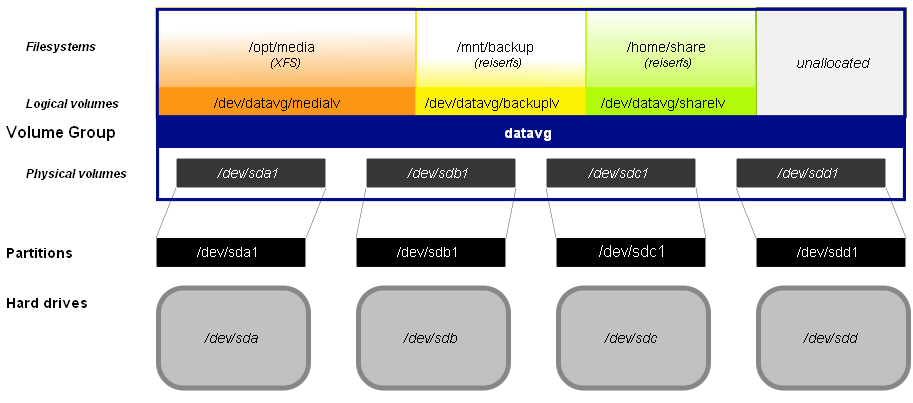
Now a days, when one installs Linux on ones machine, in more cases than one, there is a trend to create a logical volume and create the file system on this volume rather than creating the file system in individual partitions. I have myself created logical volumes on one of my machines running Linux.

Logical volumes have their own advantages in that one can grow or shrink a volume without any loss of data. And that makes it much more flexible than creating file systems directly in partitions. Another advantage is that one can bundle multiple hard disks together to create a single logical volume such that the operating system sees only one volume even as the data resides across multiple physical hard disks. In a previous post titled "Resizing Logical Volumes", I had briefly put down my experiences in create logical volumes in Fedora Linux.

Now Bryce Harrington and Kees Cook have come together to write this very informative article titled 'Managing Disk Space with LVM' which clearly explains the ins and outs of creating, modifying and deleting logical volumes in Linux which makes an interesting read.

Usually, logical volumes are more desirable where there is a constant flux in the amount of data in storage devices such as a machine running as a file server or a database server and so on. But even home users could benefit from creating logical volumes if they are in the habit of saving lots of data on their hard disk like games, movie clips,songs... and see their disk space shrinking at a fast pace.And if the hard disk fills up, the procedure is as simple as attaching a second hard disk and then extending the logical volume on the first hard disk to include the new one. But if you go the LVM way for your desktop, just make sure that the /boot directory resides in a physical partition of its own instead of the logical volume as boot loaders like GRUB and LILO don't support LVM yet.

Interview : Linus Torvalds says he has never used Debian yet

Alright, many of you would find this title a bit controversial. But that is exactly what Linus Torvalds the father of Linux said when asked the simple question of which Linux distribution is his favourite one.

Linus Torvalds was interviewed by oneopensource.it where he went on to express his thoughts on a variety of topics including GPLv3, whether Linux infringes Microsoft patents, about Microsoft - Novell agreement, the future of Linux kernel and so on.

The questions posed are quite thoughtful and Linus Torvalds answers are equally interesting.

On questioned as to "which is your favourite distribution, and which one do you consider more secure?", this is what he had to say ... (and I quote)

I don’t really tend to care much, I’ve changed distributions over the years, and to me the most important thing tends to be that they are easy to install and upgrade, and allow me to do the only part I really care about - the kernel.

So the only major distribution I’ve never used has actually been Debian, exactly because that has traditionally been harder to install. Which sounds kind of strange, since Debian is also considered to be the “hard-core technical” distribution, but that’s literally exactly what I personally do not want in a distro. I’ll take the nice ones with simple installers etc, because to me, that’s the whole and only point of using a distribution in the first place.

So I’ve used SuSE, Red Hat, Ubuntu, YDL (I ran my main setup on PowerPC-based machines for a while, and YDL - Yellow Dog Linux - ended up the easiest choice). Right now, most of my machines seem to have Fedora 7 on them, but that’s only a statement of fact, not meant to be that I think it’s necessarily “better” than the other distros.

Kamis, 19 Juli 2007

GNUCash 2.0.0 - My favorite personal accounting software now available on Windows

I have used a number of personal accounting software some of them non-free ones. But none compares with GNUCash when you compare them for ease of use, unbeatable price and extensive features all combined. GNUCash beats all its competition hands down. I have always wondered why most Linux distributions targeted at the desktop do not bundle GNUCash by default. Of course it is simple enough to install it separately using Synaptic or equivalent package management tool. But then if any package is to be included in a Linux distribution targeted at the lay person, I would say it should be a personal accounting software as most people will find it a useful tool to manage their finances. And at present GNUCash has left its nearest competitor far behind.

The good news is that now the Windows users can also feel happy because the stable version of GNUCash ver 2.2.0 has been released for Windows too apart for other OSes such as Linux, BSDs, Solaris and MacOSX.

A couple of months back, I had used GNUCash ver 2.2.0 in Windows when it was still in the testing stage. And even at that time, this marvelous piece of software hadn't crashed even a single time. And I suppose in the stable version it has become even more robust.


Some of the features of GNUCash 2.2.0 are as follows :
  • Supports Double Entry Accounting - this means it can be used to manage the accounts of even small to medium businesses.
  • Excellent support for generation of various reports of your financial status.
  • You can view your expenses and incomes as pie charts.
  • Supports currencies of most countries
  • Support for Online banking
  • Cheque printing
  • Automatically save the data file
  • Statement reconciliation
  • Choose from 21 different languages to display menus and dialog boxes and much more.
Here is a tip to efficiently use GNUCash. You can save the data file (which contains the financial data) in a removable media such as a USB Pen drive. And then install GNUCash in all the OSes that you have installed on your machine. So when ever you want to enter a record of the day's expenses, just plug in the USB pen drive and open GNUCash in which ever OS you seems to be using at that time. GNUCash will open the last used data file automatically.

If you are a Windows user (I wonder why ;-)), you can download the GNUCash 2.2.0 binary and give it a try. I assure you, it won't be a disappointing experience. And if you wonder why you are better off using a personal accounting software, then let me tell you, it is the best thing you would be doing to yourself because it gives you a snapshot of your net worth after the checks and balances. It shows you your spending patterns over a period of days, weeks, months and years. And using a personal accounting software you will be able to analyze your income and expenses and help you plug unnecessary expenses. On a personal note, after starting to use GNUCash, I came to realize that I was spending a good amount eating out and I made a conscious effort to curtail my gourmet craves.