If you are running a website, even if it is a blog, chances are, you might have used SSH at least once. SSH stands for Secure SHell. When you use SSH, the communication and data transfer between the local machine and the remote machine occurs in a secure encrypted tunnel. So no one will be able to snoop on your data.
Read more »


Tampilkan postingan dengan label system administration. Tampilkan semua postingan
Tampilkan postingan dengan label system administration. Tampilkan semua postingan
Senin, 19 September 2011

Kamis, 13 Januari 2011
10 Do's And Dont's For System Administrators
System Administrators have an unenviable job. They have to work odd hours ensuring the computers in your office run without a glitch. And people tend to think of System Administrators only when their machines start misbehaving. Obviously they have their work cut out for them.
CHIMIT (Computer-Human Interaction for Management of Information Technology) is a conference that focuses on computer-human interaction for IT workers. Recently they asked what would make the System Administrator's job a wee bit easier than usual.
And the following are the prominent answers they received from the ensuing brainstorming session -
Read more »
CHIMIT (Computer-Human Interaction for Management of Information Technology) is a conference that focuses on computer-human interaction for IT workers. Recently they asked what would make the System Administrator's job a wee bit easier than usual.
And the following are the prominent answers they received from the ensuing brainstorming session -
Read more »
Linux Ate My RAM - Help!
Help! Linux ate my Memory. Did it indeed?
I was curious where my memory had gone because, when I fired up a terminal and typed the command -
I got the following output.
From a total of 882 MB, 843 MB has been used leaving only a measly 38 MB free for my use. How is that possible ?
Well, I stumbled upon an interesting website which explains in detail just this conundrum.
The website is (and you might have guessed it right!) linuxatemyram.com. And after reading through the website, I figured out that the whole thing is just a play of words. What you consider free is indeed free, but Linux chooses to call it 'used' because this memory is both used for something and at same time available for applications. Since your and Linux's terminology differs, you think you are low on RAM when you're not.Get it ?
I was curious where my memory had gone because, when I fired up a terminal and typed the command -
$ free -mI got the following output.
total       used       free     shared    buffers     cached
Mem:           882        843         38          0         86        424
-/+ buffers/cache:        332        549
Swap:            0          0          0
From a total of 882 MB, 843 MB has been used leaving only a measly 38 MB free for my use. How is that possible ?
Well, I stumbled upon an interesting website which explains in detail just this conundrum.
The website is (and you might have guessed it right!) linuxatemyram.com. And after reading through the website, I figured out that the whole thing is just a play of words. What you consider free is indeed free, but Linux chooses to call it 'used' because this memory is both used for something and at same time available for applications. Since your and Linux's terminology differs, you think you are low on RAM when you're not.Get it ?
Kamis, 12 Agustus 2010
Strace - The Sysadmin’s Microscope
Strace is a command line tool which can be used to figure out what is wrong with an errant application running in your Linux system. Some even look at strace as the Swiss army knife of a systems administrator.
Check out how I used strace to troubleshoot a multimedia problem in Ubuntu a long time back.
More recently, Greg Price at the Ksplice blog has written an informative article on strace which explains the use of this troubleshooting tool.
Check out how I used strace to troubleshoot a multimedia problem in Ubuntu a long time back.
More recently, Greg Price at the Ksplice blog has written an informative article on strace which explains the use of this troubleshooting tool.
Selasa, 03 November 2009
Free Open Source Screencasts for Linux System Administrators and Newbies alike
There has always been a dearth in quality training material in Linux System Administration. And if there are resources on the Net, they are hard to find. Now here is a new venture by John Yerhot who endevours to provide very well made videos which explain how to use different commands in Linux, useful to people who administer Linux servers.
Read more »
Read more »
Minggu, 11 Oktober 2009
Bash Examples - Mistakes to Avoid

Read more »
Minggu, 20 September 2009
Netcat, nc command

Read more »
Minggu, 04 Mei 2008
Guide to adding a new partition or drive to an existing system
Suppose you are required to create a 10 GB partition on your server running Linux, you have got two options namely :
- Create a partition from the unpartitioned space on your machine or
- Add a new drive.
If you are opting for the latter then it is a simple thing of plugging in the new drive, letting the system detect it, using a partitioning tool to create the requisite partition, formating the newly created partition and finally mounting it. But if it is the former namely, creating a partition from unpartitioned space, then the task gets a bit trickier.
Joey Prestia explains the exact steps needed to add a new partition to an existing system. The task can be broken down into the following steps :
- Determine what partitions need to be created and where.
- Create the partitions (I use 'fdisk' here but any Linux disk partitioning tool should work)
- Re-read the partition table either with 'partprobe' or by a reboot
- Make a filesystem on the partition, label it, and create the necessary mount points
- Add the appropriate entries to '/etc/fstab' so the partitions are mounted upon reboot
Check out Joey's notes to know the exact commands used to accomplish the above tasks.
Linux file system hierarchy - the fun easy way
I have been asked by many people to explain the file system hierarchy in Linux because they find the file system in Linux quite different from what they are used to in Windows. To put it simply, it can be visualized as a tree with its roots and all. At the top of the hierarchy is invariably the root path which is represented by '/'. All other directories are created beneath this root path. And each of the sub directories have a specific purpose. For example, '/etc' contain the configuration files, the '/opt' directory is used to install third party software, '/boot' contain the grub files and the Linux kernel and so on.
Today I came across this very beautiful image which explains the Linux file system in lucid detail at linuxconfig.org.
 Fig: Linux file system hierarchy
Selasa, 28 Agustus 2007
Tweak your host file to block ad generating web sites
Here is a cool tip to block ad generating websites from serving ads while you are browsing the web. The idea is to direct all the domains pointing to the ad serving sites to your localhost aka 127.0.0.1 . Now, the next time you visit a website and the website is serving an ad from a domain which you have directed to your localhost, you will see a blank space at the position where the ad was to be served.
This is done by inserting lines in your host file (/etc/hosts) on your Linux machine which are in the following format one domain per line :
... and so on.
FILE: /etc/hosts
127.0.0.1   localhost
127.0.0.1   ad.doubleclick.net
127.0.0.1   xx.adserver.xxx
...
One thing worth noting is that once you have collected (almost) all the ad serving sites domains, the resulting host file will be really huge as there are an ever growing collection of companies which make a living serving ads on publishing sites. More over, after some time it gets a bit tedious to update the /etc/hosts file on a regular basis.
LittleUbuntu has a nice writeup about implementing this feature in Ubuntu as well as a link to the original article.
LittleUbuntu has a nice writeup about implementing this feature in Ubuntu as well as a link to the original article.
Jumat, 20 Juli 2007
Managing disk space with LVM
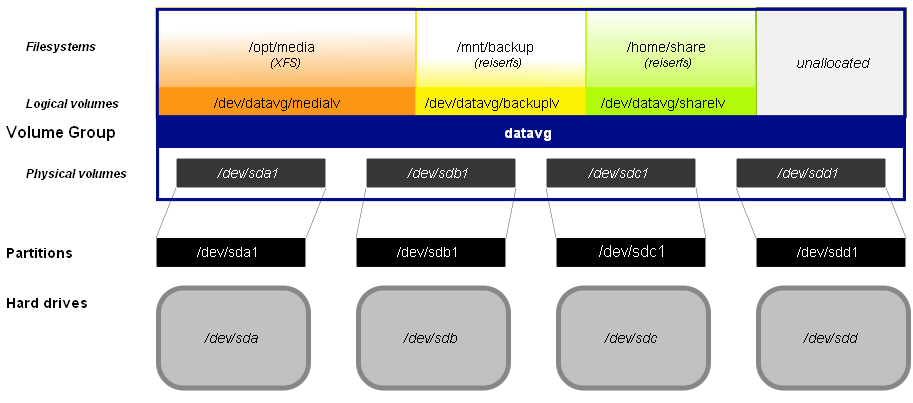 Now a days, when one installs Linux on ones machine, in more cases than one, there is a trend to create a logical volume and create the file system on this volume rather than creating the file system in individual partitions. I have myself created logical volumes on one of my machines running Linux.
Logical volumes have their own advantages in that one can grow or shrink a volume without any loss of data. And that makes it much more flexible than creating file systems directly in partitions. Another advantage is that one can bundle multiple hard disks together to create a single logical volume such that the operating system sees only one volume even as the data resides across multiple physical hard disks. In a previous post titled "Resizing Logical Volumes", I had briefly put down my experiences in create logical volumes in Fedora Linux.
Now Bryce Harrington and Kees Cook have come together to write this very informative article titled 'Managing Disk Space with LVM' which clearly explains the ins and outs of creating, modifying and deleting logical volumes in Linux which makes an interesting read.
Usually, logical volumes are more desirable where there is a constant flux in the amount of data in storage devices such as a machine running as a file server or a database server and so on. But even home users could benefit from creating logical volumes if they are in the habit of saving lots of data on their hard disk like games, movie clips,songs... and see their disk space shrinking at a fast pace.And if the hard disk fills up, the procedure is as simple as attaching a second hard disk and then extending the logical volume on the first hard disk to include the new one. But if you go the LVM way for your desktop, just make sure that the /boot directory resides in a physical partition of its own instead of the logical volume as boot loaders like GRUB and LILO don't support LVM yet.
Rabu, 11 April 2007
Unix Processes - What constitute a Process ?
A process is a fundamental part of any operating system - irrespective of whether they are proprietary or Free. And all Operating systems usually have a lot of processes running at any given time. This begs the question, what exactly is a process ?
A process can be considered to be a container, bundling a running application, its environment variables, the state of the application's input and output, and the state of the process, including its priority and accumulated resource usage. In short, every single application that you run on your machine will have its own unique process allocated to it for the duration of the time it runs.
In Unix based OSes, each of that unique process has a parent process from which it is forked (cloned, spawned) initially. The very first process that is created by the OS when you turn on the machine is init process. This process will always have a process id of 1. All processes are ultimately descended from the one process called init. Try running the ps command to find the process id of init.
$ ps axj
PPID   PID  PGID   SID TTY   TPGID STAT     UID   TIME COMMAND
 0     1     0     0 ?       -1   S        0    0:04 init [4]
Martin Streicher has written an enlightening article throwing more light on the concept of a Unix process. He explains the semantics of a process, some very useful commands which give information about the running processes as well as talks about forks and daemons (a special kind of process which continuously runs in the background waiting for some application to connect to it).
Sabtu, 17 Maret 2007
Bash FAQ - Frequently Asked Questions
I was once motivated enough to write a guide on Bash scripting which I chose to call "The 10 Seconds Guide to Bash Scripting" which, if missed, you can read here. Even though many of you may challenge me on the time I claim is enough to read through the guide, I am sure you will find it useful.
Today I came across a collection of tips that are compiled into an FAQ which explain many questions related to Bash scripting. Considering that Bash shell is the default shell for all GNU/Linux distributions and it being bundled with other Unix OSes, it has in my opinion gained more credibility than the erstwhile Bourne shell (which btw is still the default shell for Solaris). The FAQ is maintained by a person named Greg and can be accessed here. There are altogether 75 questions followed by their answers. Aside from being informative, many of them are interesting as well.
While we are on the topic of Bash shell, you may also be interested in reading a list of the common Bash shell keyboard shortcuts.
Jumat, 16 Maret 2007
Steps to manually mount a USB flash drive in GNU/Linux
I recently got hold of a 1 GB USB memory stick. It is a Kingmax 1 GB flash drive (U201G - U2GMHDWG) which is (believe it or not), half the size of my little finger. In fact, it is so small that there is a good chance I might misplace it somewhere if it was not tethered to a chain. Anyway, the USB stick has a FAT partition on it and contain some data which I wanted to access in GNU/Linux. I was using Ubuntu and it straight away detected the device as soon as I inserted it and it was automatically mounted in the /media/USB DISK location.
 Fig: The tiny 1 GB USB flash drive from Kingmax
But when I tried to mount it in a bare bones Linux distribution (a distribution which has just enough software as is needed), it was not mounted automatically. This is because the auto mounting takes place by means of a program known as hotplug which detects the USB device that is inserted in real time and then mounts it in the desired location.
So is it possible to mount a USB device (in my case the USB stick) manually ? Yes, it is possible. The idea is that the USB ports are detected by GNU/Linux as /dev/sdax - where 'x' in sdax stands for the number of the USB port. And once the USB device is connected to the USB port of your machine, you have to mount it manually.
These are the steps I followed to successfully mount the USB memory stick on my bare bones Debian Etch machine.
- Insert the USB stick into the USB port. My machine has 4 USB ports, 3 in the back and one at front. It doesn't matter which port you insert the device. The first USB port you use will be assigned the name /dev/sda1, the next port /dev/sda2 and so on.
- Check if the USB device is detected by GNU/Linux by running the following command:
# lsusb
The first line in the output of the above command shows that the memory stick has been detected as Super Flash 1 GB Flash drive.
Bus 002 Device 007: ID 0457:0151 Silicon Integrated Systems Corp. Super Flash 1GB Flash Drive
Bus 002 Device 002: ID 8086:1120 Intel Corp.
Bus 002 Device 001: ID 0000:0000
Bus 001 Device 001: ID 0000:0000 - Mount the device in the desired location. I chose to mount it in the /mnt/usbstick directory.
# mount -t vfat -o rw,nosuid,nodev,quiet,shortname=mixed,uid=1001,gid=100,umask=077,iocharset=utf8 /dev/sda1 /mnt/usbstick
As an aside, you can do away with a lot of mount options such as nosuid, nodev and so on. The uid is necessary and is my user id number which allows me to access the device without being logged in as root. And if you are not sure of the partition on your usb stick, you can also use auto instead of vfat.
Update (19th March 2007): I forgot to mention one thing. The 'lsusb' command is used to find out if your USB device has indeed been detected by GNU/Linux kernel. If it is not detected by any chance because of non-availability of Linux drivers for your device, the command will not output the specific information. Once you are sure that the device has been detected, you can use the fdisk command to list the device(s) as follows :
Update (19th March 2007): I forgot to mention one thing. The 'lsusb' command is used to find out if your USB device has indeed been detected by GNU/Linux kernel. If it is not detected by any chance because of non-availability of Linux drivers for your device, the command will not output the specific information. Once you are sure that the device has been detected, you can use the fdisk command to list the device(s) as follows :
# fdisk -lwhich will list all the devices including the USB devices detected by GNU/Linux. Then you can use the mount command to mount it at a specific location.
Sabtu, 03 Maret 2007
What does /etc stands for in Linux/Unix ?
There is a discussion going on over at Slashdot regarding what /etc in Linux/Unix stands for. Is it an acronym or does it stand for 'et cetera' ? While the opinion is divided, the overwhelming thought is that it stands for et cetera. That is, what ever data which doesn't belong to other directories are put into /etc. Such as the 'motd' file (which stands for "Message Of The Day"). Many of us also look at /etc as a placeholder for the configuration files of programs which we run on our system.
If you look at the Linux file hierarchy, you find the following :
- /bin - common binaries
- /sbin - Binaries used for system administration are placed here.
- /boot - static files of the boot loader. Usually it contain the Linux kernel, Grub boot loader files and so on.
- /dev - device files such as your CD drive, hard disk, and any other physical device. (In Linux/Unix, the common premise is that everything is a file).
- /home - user home directories are found here. In unices like FreeBSD, the home directories are found in /usr/home. And in Solaris it is in /export. So quite a big difference here.
- /lib - Essential shared libraries and kernel modules
- /mnt - temporary mount point useful for when you insert your USB stick and it gets mounted under /mnt. Though in Ubuntu and the likes, it is usually mounted under /media.
- /var - variable data, such as logs, news, mail spool files and so on which is constantly being modified by various programs running on your system.
- /tmp - temporary files are placed here by default.
- /usr - the secondary hierarchy which contain its own bin and sbin sub-directories.
- /etc - Usually contain the configuration files for all the programs that run on your Linux/Unix system.
- /opt - Third party application packages which does not conform to the standard Linux file hierarchy can be installed here.
- /srv - Contains data for services provided by the system.
The file system hierarchy standard [FSHS] explains /etc as follows :
The /etc hierarchy contains configuration files. A "configuration file" is a local file used to control the operation of a program; it must be static and cannot be an executable binary.It further goes on to say :
While this is the long and short of the matter, some believe that '/etc' is indeed an acronym and stands for "Editable Text Configuration". Oh well, the media is still not out with the verdict.No binaries may be located under '/etc'. And the following directories, or symbolic links to directories are required in /etc:
opt Configuration for /opt
X11 Configuration for the X Window system (optional)
sgml Configuration for SGML (optional)
xml Configuration for XML (optional)
Minggu, 19 November 2006
Ifconfig - dissected and demystified
ifconfig - the ubiquitous command bundled with any Unix/Linux OS is used to setup any/all the network interfaces such as ethernet, wireless, modem and so on that are connected to your computer. ifconfig command provides a wealth of knowledge to any person who takes the time to look at its output. Commonly, the ifconfig command is used for the following tasks:
1) Configuring an interface - be it ethernet card, wireless card, loop back interface or any other. For example, in its simplest form, to set up the IP address of your ethernet card, you pass the necessary options to the ifconfig command as follows:
# ifconfig eth0 192.168.0.1 netmask 255.255.255.0 broadcast 192.168.0.255 upWhere the 192.168.0.1 number pertains to the IP address of your machine. I have used a private IP address. 255.255.255.0 denotes the network mask which decides the potential size of your network and the number 192.168.0.255 denotes the broadcast address and lastly, the 'up' keyword is the flag which loads the module related to this particular ethernet card and makes it ready to receive and send data.
2) Gathering data related to the network off which our computer is a part.
When used without any parameters, the command ifconfig shows details of the network interfaces that are up and running in your computer. In my machine which has a single ethernet card and a loop back interface, I get the following output.
eth0      Link encap:Ethernet  HWaddr 00:70:40:42:8A:60
       inet addr:192.168.0.1  Bcast:192.168.0.255  Mask:255.255.255.0
       UP BROADCAST NOTRAILERS RUNNING MULTICAST  MTU:1500  Metric:1
       RX packets:160889 errors:0 dropped:0 overruns:0 frame:0
       TX packets:22345 errors:0 dropped:0 overruns:0 carrier:0
       collisions:0 txqueuelen:1000
       RX bytes:33172704 (31.6 MiB)  TX bytes:2709641 (2.5 MiB)
       Interrupt:9 Base address:0xfc00

lo        Link encap:Local Loopback
       inet addr:127.0.0.1  Mask:255.0.0.0
       UP LOOPBACK RUNNING  MTU:16436  Metric:1
       RX packets:43 errors:0 dropped:0 overruns:0 frame:0
       TX packets:43 errors:0 dropped:0 overruns:0 carrier:0
       collisions:0 txqueuelen:0
       RX bytes:3176 (3.1 KiB)  TX bytes:3176 (3.1 KiB)
As you can see, it throws up a lot of data, most of it providing one detail or another. Lets look at the data spewed out by the ifconfig command one by one for the ethernet device.
- Link encap:Ethernet - This denotes that the interface is an ethernet related device.
- HWaddr 00:70:40:42:8A:60 - This is the hardware address or MAC address which is unique to each ethernet card which is manufactured. Usually, the first half part of this address will contain the manufacturer code which is common for all the ethernet cards manufactured by the same manufacturer and the rest will denote the device Id which should not be the same for any two devices manufactured at the same place.
- inet addr - indicates the machine IP address
- Bcast - denotes the broadcast address
- Mask - is the network mask which we passed using the netmask option (see above).
- UP - This flag indicates that the kernel modules related to the ethernet interface has been loaded.
- BROADCAST - Denotes that the ethernet device supports broadcasting - a necessary characteristic to obtain IP address via DHCP.
- NOTRAILERS - indicate that trailer encapsulation is disabled. Linux usually ignore trailer encapsulation so this value has no effect at all.
- RUNNING - The interface is ready to accept data.
- MULTICAST - This indicates that the ethernet interface supports multicasting. Multicasting can be best understood by relating to a radio station. Multiple devices can capture the same signal from the radio station but if and only if they tune to a particular frequency. Multicast allows a source to send a packet(s) to multiple machines as long as the machines are watching out for that packet.
- MTU - short form for Maximum Transmission Unit is the size of each packet received by the ethernet card. The value of MTU for all ethernet devices by default is set to 1500. Though you can change the value by passing the necessary option to the ifconfig command. Setting this to a higher value could hazard packet fragmentation or buffer overflows. Do compare the MTU value of your ethernet device and the loopback device and see if they are same or different. Usually, the loopback device will have a larger packet length.
- Metric - This option can take a value of 0,1,2,3... with the lower the value the more leverage it has. The value of this property decides the priority of the device. This parameter has significance only while routing packets. For example, if you have two ethernet cards and you want to forcibly make your machine use one card over the other in sending the data. Then you can set the Metric value of the ethernet card which you favor lower than that of the other ethernet card. I am told that in Linux, setting this value using ifconfig has no effect on the priority of the card being chosen as Linux uses the Metric value in its routing table to decide the priority.
- RX Packets, TX Packets - The next two lines show the total number of packets received and transmitted respectively. As you can see in the output, the total errors are 0, no packets are dropped and there are no overruns. If you find the errors or dropped value greater than zero, then it could mean that the ethernet device is failing or there is some congestion in your network.
- collisions - The value of this field should ideally be 0. If it has a value greater than 0, it could mean that the packets are colliding while traversing your network - a sure sign of network congestion.
- txqueuelen - This denotes the length of the transmit queue of the device. You usually set it to smaller values for slower devices with a high latency such as modem links and ISDN.
- RX Bytes, TX Bytes - These indicate the total amount of data that has passed through the ethernet interface either way. Taking the above example, I can fairly assume that I have used up 31.6 MB in downloading and 2.5 MB uploading which is a total of 37.1 MB of bandwidth. As long as there is some network traffic being generated via the ethernet device, both the RX and TX bytes will go on increasing.
- Interrupt - From the data, I come to know that my network interface card is using the interrupt number 9. This is usually set by the system.
The values of almost all the options listed above can be modified using the requisite ifconfig options. For example, you can pass the option 'trailers' to the ifconfig command to enable trailer encapsulation. Or you can change the packet size by using the 'mtu' option along with the new value and so on. But in majority of the cases, you always accept the default values.
Learning to use the right command is only a minuscule part of the job of a network administrator. The major part of the job is in analyzing the data returned by the command and arriving at the right conclusions.
Learning to use the right command is only a minuscule part of the job of a network administrator. The major part of the job is in analyzing the data returned by the command and arriving at the right conclusions.
Senin, 02 Oktober 2006
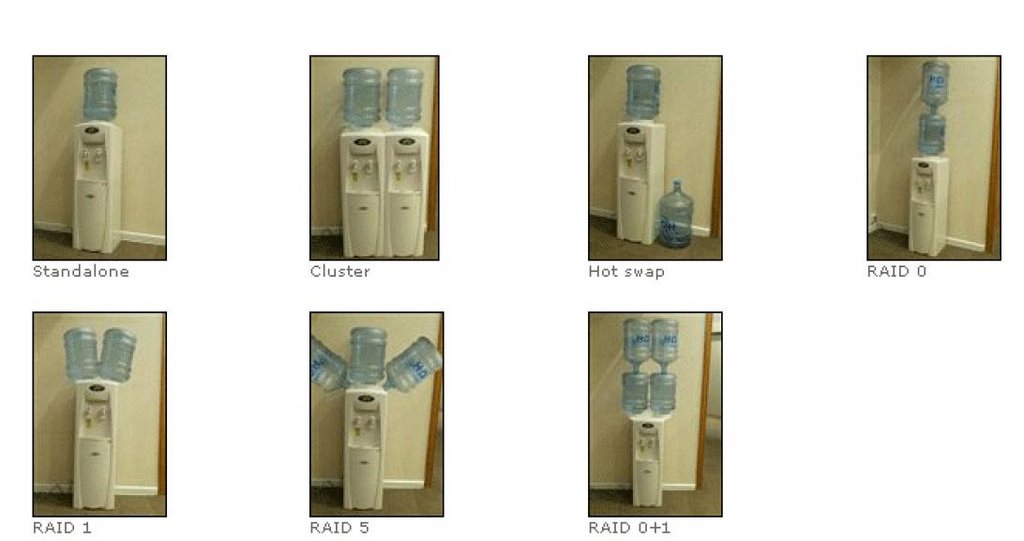
A cool visual way of understanding RAID
RAID stands for Redundant Array of Inexpensive Disks, is a process of using multiple hard drives to replicate data. There are different kinds of Raids such as :
Raid 0 stripped set, Raid 1 mirrored set, Raid 5 stripped set with parity and so on. (Source: Wikipedia).
Here is a very cool way of understanding RAID as explained by an enterprising mind. And when I say cool, I mean it.
Selasa, 19 September 2006
A concise tutorial on using Git - the Source Code Management tool developed by Linus Torvalds
There was a time when Linux code was managed using the Free as in Freedom Beer tool called Bitkeeper - a Source Code Management tool developed by Larry McVoy. But due to the differences of opinion between the free software developers and Larry, Linus decided to develop his own free (as in freedom) revision control software which he named Git. For those who are curious, Jermey had written a detailed article about the politics of Bitkeeper vis-a-vis Linux when this broke out. Now the Linux kernel source is managed using the new tool developed by Linus called Git.
Eli M. Dow has written a good tutorial which explains the basic concepts behind the usage of Git to manage source code. He walks one through the installation of Git, using Git to obtain the latest Linux kernel source tree, checking, modifying, adding and removing files to committing the changes made.
There is a still lengthier documentation at kernel.org explaining all the configuration switches of Git which also makes an interesting read.
Kamis, 04 Mei 2006
strace - A very powerful troubleshooting tool for all Linux users
Many times I have come across seemingly hopeless situations where a program when compiled and installed in GNU/Linux just fails to run. In such situations after I have tried every trick in the book like searching on the net and posting questions to Linux forums, and still failed to resolve the problem, I turn to the last resort which is trace the output of the misbehaving program. Tracing the output of a program throws up a lot of data which is not usually available when the program is run normally. And in many instances, sifting through this volume of data has proved fruitful in pin pointing the cause of error.
For tracing the system calls of a program, we have a very good tool in strace. What is unique about strace is that, when it is run in conjunction with a program, it outputs all the calls made to the kernel by the program. In many cases, a program may fail because it is unable to open a file or because of insufficient memory. And tracing the output of the program will clearly show the cause of either problem.
The use of strace is quite simple and takes the following form:
$ strace <name of the program>$ strace ls$ strace -o strace_ls_output.txt ls... will write all the tracing output of 'ls' to the 'strace_ls_output.txt' file. Now all it requires is to open the file in a text editor and analyze the output to get the necessary clues.
It is common to find a lot of system function calls in the strace output. The most common of them being open(),write(),read(),close() and so on. But the function calls are not limited to these four as you will find many others too.
For example, if you look in the strace output of ls, you will find the following line:
open("/lib/libselinux.so.1", O_RDONLY) = 3
This means that some aspect of ls requires the library module libselinux.so.1 to be present in the /lib folder. And if the library is missing or in a different path, then that aspect of ls which depends on this library will fail to function. The line of code signifies that the opening of the library libselinux.so.1 is successful.
Here I will share my experience in using strace to solve a particular problem I faced. I had installed all the multimedia codecs including the libdvdcss which allowed me to play encrypted DVDs in Ubuntu Linux which I use on a daily basis. But after installing all the necessary codecs, when I tried playing a DVD movie, totem gave me an error saying that it was unable to play the movie (see the picture below). But since I knew that I had already installed libdvdcss on my machine, I was at a loss what to do.
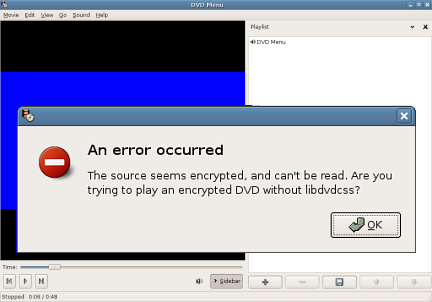 Fig: Totem showing error saying that it cannot find libdvdcss
Then I ran strace on totem as follows :
$ strace -o strace.totem totem... and then opened the file strace.totem in a text editor and searched for the string libdvdcss . And not surprisingly I came across this line of output as shown in the listing below.
# Output of strace on totem
open("/etc/ld.so.cache", O_RDONLY)      = 26
fstat64(26, {st_mode=S_IFREG|0644, st_size=58317, ...}) = 0
old_mmap(NULL, 58317, PROT_READ, MAP_PRIVATE, 26, 0) = 0xb645e000
close(26)
access("/etc/ld.so.nohwcap", F_OK)      = -1 ENOENT (No such file or directory)
...
open("/lib/tls/i686/cmov/libdvdcss.so.2", O_RDONLY) = -1 ENOENT (No such file or directory)
stat64("/lib/tls/i686/cmov", {st_mode=S_IFDIR|0755, st_size=1560, ...}) = 0
...
stat64("/lib/i486-linux-gnu", 0xbfab4770) = -1 ENOENT (No such file or directory)
munmap(0xb645e000, 58317)               = 0
open("/usr/lib/xine/plugins/1.1.1/xineplug_inp_mms.so", O_RDONLY) = 26
read(26, "\177ELF\1\1\1\0\0\0\0\0\0\0\0\0\3\0\3\0\1\0\0\0\320\27"..., 512) = 512
fstat64(26, {st_mode=S_IFREG|0644, st_size=40412, ...}) = 0
In the above listing which I have truncated for clarity, the line in bold clearly shows that totem is trying to find the library in, among other places, the '/lib/tls/i686/cmov/' directory and the return value of -1 shows that it has failed to find it. So I realized that for totem to correctly play the encrypted DVD, it has to find the libdvdcss.so.2 file in the path it is searching.
Then I used the find command to locate the library and then copy it to the directory /lib/tls/i686/cmov/. Once I accomplished this, I tried playing the DVD again in totem and it started playing without a hitch.
 Fig: Totem playing an encrypted DVD Movie
Just to make sure, I took another trace of totem and it showed that the error was rectified as shown by the bold line of output below.
# Output of the second strace on totem
open("/etc/ld.so.cache", O_RDONLY)      = 26
fstat64(26, {st_mode=S_IFREG|0644, st_size=58317, ...}) = 0
old_mmap(NULL, 58317, PROT_READ, MAP_PRIVATE, 26, 0) = 0xb644d000
close(26)                               = 0
access("/etc/ld.so.nohwcap", F_OK)      = -1 ENOENT (No such file or directory)
...
open("/lib/tls/i686/cmov/libdvdcss.so.2", O_RDONLY) = 26
...
stat64("/lib/tls/i686/sse2", 0xbffa4020) = -1 ENOENT (No such file or directory)
munmap(0xb645e000, 58317)               = 0
open("/usr/lib/xine/plugins/1.1.1/xineplug_inp_mms.so", O_RDONLY) = 26
read(26, "\177ELF\1\1\1\0\0\0\0\0\0\0\0\0\3\0\3\0\1\0\0\0\360\20"..., 512) = 512
fstat64(26, {st_mode=S_IFREG|0644, st_size=28736, ...}) = 0
Opening the man page of strace, one will find scores of options. For example, if you use the option -t, then strace will prefix each line of the trace with the time of day. One can even specify the system call functions to trace using the -e option. For example, to trace only open() and close() function system calls, one can use the command as follows:
$ strace -o strace.totem -e trace=open,close totemThe ubiquitous strace should not be confused with DTrace that ships with Sun Solaris. strace is just a single tool which takes care of a small part which is tracing a single program. Where as Sun's DTrace toolkit is much more powerful and consists of a collection of scripts which can track, tune and aid the user in troubleshooting ones system in real time. More over, dtrace is a scripting language with close semblance to C/C++ and awk. Put another way, strace tool in GNU/Linux provides only one of the many functions provided by DTrace in Sun Solaris. That being said, strace plays an important part in aiding the user to troubleshoot ones programs by providing a view of the system calls that the program makes to the Linux kernel.
PS: If you are wondering which movie I was intent on watching, it is "For a Few Dollars More" - an all time classic western starring Clint Eastwood. I really like this movie.
Sabtu, 21 Januari 2006
Diverse experiences of a professional Unix/Linux Administrator
Unix/Linux administrators have great stories of their experiences at work, their day-to-day interactions with the Windows admins and the often hilarious situations they face. Here is an excellent post of a professional Unix/Linux administrator who has had many such light hearted experiences during his interaction with his Windows counterparts.
What makes this article unique is that the author has desisted from showing the Windows administrators in bad light while at the same time giving it a humorous tinge. A very good read for a light hearted moment.
Langganan:
Postingan (Atom)