Tampilkan postingan dengan label bash shell. Tampilkan semua postingan

Minggu, 11 Oktober 2009

Bash Examples - Mistakes to Avoid

Bash Examples
A bash script is a text file containing a list of commands to be executed by the bash shell. A long time back, I had written a guide on Bash scripting which teaches you the basic syntax of bash scripts in a mere 10 seconds.
Read more »

Senin, 24 Maret 2008

Two repositories of Linux and Unix commands and example dot files

Does your job involve writing complex bash commands ? Or perhaps you are interested in learning tips and tricks on writing versatile dotfiles. Well, here are two sites which are dedicated to collecting useful tips so as to help Linux users better.

Shell-fu - Is a great site with a growing collection of command line goodies. What makes it interesting is that there are multiple combinations of commands which achieve different tasks. And users can submit and vote for their favorite commands.

Dot files - If you precede a file with a dot, it is considered as a hidden file in Linux. There are numerous hidden files in Linux. The standard ones being .bashrc, .profile, .Xdefaults, .xinitrc and so on. But it doesn't limit to these files. Many applications create hidden files too.

Enter the following command in your terminal to see the hidden files in your home directory.
$ ls -a
This site is a repository of collections of dot files. The files are contributed by its visitors and are divided into different sections namely .vimrc, .screenrc, .bashrc, .zshrc, .Xdefaults, .conkyrc, .irbrc, .bash_profile, .xinitrc and .emacs.

Senin, 11 Februari 2008

Python scripts vs Bash scripts in Linux

Almost all Linux users who are at least familiar with bash shell commands will be at home in writing simple bash scripts to automate tasks. For those who do not know how to write a bash script, here is how you do it.

Open a new file in your favorite text editor and save it in any name of your choice but with the extension .sh. For example, let us name it 'myfirstscript.sh' . The 'sh' file extension is not mandatory but is a nice way for us to later remember that this file is a script.

Now in this file (myfirstscript.sh), enter the following line.
#!/usr/bin/bash
This line should always be entered the first thing in any bash script you create. It lets the shell know where to find the bash program. In some Linux distributions the bash command is located at /bin/bash. When in doubt, use the 'which' command to find the location as follows :
$ which bash
/usr/bin/bash
# Continuation of the above script ...
# Now lets enter a few commands in this script ...
ls -l
sleep 2
who
sleep 2
w
Nothing spectacular here. Note that 'sleep' is used to pause the execution process for certain time in seconds. Next fire up a console (xterm, gnome-terminal ...) and set the executable bit for the script myfirstscript.sh as follows :
$ chmod u+x myfirstscript.sh
This lets you execute the script by its name as follows :
$ ./myfirstscript.sh
All this may seem easy. But you can get added benefits if you substitute 'bash' with Python language to write your scripts. Noah Gift provides compelling reasons to pick up Python programming language skills and start writing your scripts in this language. If you do not know Python language and is looking for some direction then you should look at the two books Core Python programming and Python phrasebook which will give you a head start in mastering this powerful but easy to learn language.

Minggu, 02 Desember 2007

BASH tips and tricks

Ever since I started using Linux, BASH has been the shell of my choice. Though I have used numerous other shells like Korn Shell, Bourne shell (which is the default shell in Unix), C shell and so on. Bash is actually an acronym for Bourne Again SHell.

Richard Bradshaw who is a teacher at a school in United Kingdom has put together a page detailing some of the common annoyances he has encountered while using BASH and ways of overcoming them.

As a recap, do take a look at some of the previous articles related to BASH shell on this blog such as ...

BASH shell shortcuts,
10 seconds guide to BASH scripting,
BASH completion,
Making your BASH scripts user friendly,
Quick editing of a command and
BASH FAQ ... just to name a few.

Sabtu, 01 September 2007

Benchmark : Which is the best Linux terminal ?

It has many times occurred to me which terminal among the plethora of terminals at our disposal are the most efficient in terms of speed, memory consumption and ease of use. And I was of the opinion that the ubiquitous xterm was a likely candidate for a terminal with less memory footprint. Well I couldn't have been further from the truth.

It seems xterm is a very poor choice when selecting a terminal. Martin Ankerl benchmarked a number of terminals available in Linux including xterm, gnome-terminal, KDE konsole, wterm, eterm and aterm. And his findings indicate gnome-terminal and konsole as the best choice of terminals for its speed. And by speed I mean the speed of execution of commands in it and not the program's startup time. But the down side is that these two terminals consume a significant amount of memory. For example, Gnome-terminal is found to consume around 45 MB.

Martin states that he found wterm as the best bet for a low memory footprint with just 6.5 MB consumption. And it is sufficiently fast in executing. xterm loses in this department too with each instance consuming around 16 MB.

Do read the full benchmark details and also a nifty graph of his results.

Minggu, 17 Juni 2007

10 Linux shell tricks you don't already know

Venture cake - a new blog on the horizon has written an insightful piece on the different ways in which one can use common commands to achieve complicated tasks in Linux.

The blog author provides examples in achieving the following :
  • A simple way to send output and errors to the same file. It is known as input-output redirection which I had covered a long time back.
  • Parallelize your loops by backgrounding them.
  • Catch memory leaks by using top command via cron.
  • Redirect output from other programs as standard input to a command directly from the command line.
  • Set a random initial password and force the user to change it.
  • Add Your Public Key to Remote Machines the Easy Way
  • Extract an RPM without any additional software
  • See How a File Has Changed from Factory Defaults
  • Undo Your Network Screwups After You’ve Lost the Connection
  • Check which Ports are Open on a remote machine using 'nc' command.
  • The Easy Way to Extract Tar Archives
  • Use Bash Shell variables - not the same as Bash shell shortcuts - I may add.
  • Never reboot a system for NFS failures
Apart from listing examples of each of them, he also provides in a couple of sentences the benefits and drawbacks of each trick. Check out this very interesting article to find out about the examples and explanation provided.

Sabtu, 17 Maret 2007

Bash FAQ - Frequently Asked Questions

I was once motivated enough to write a guide on Bash scripting which I chose to call "The 10 Seconds Guide to Bash Scripting" which, if missed, you can read here. Even though many of you may challenge me on the time I claim is enough to read through the guide, I am sure you will find it useful.

Today I came across a collection of tips that are compiled into an FAQ which explain many questions related to Bash scripting. Considering that Bash shell is the default shell for all GNU/Linux distributions and it being bundled with other Unix OSes, it has in my opinion gained more credibility than the erstwhile Bourne shell (which btw is still the default shell for Solaris). The FAQ is maintained by a person named Greg and can be accessed here. There are altogether 75 questions followed by their answers. Aside from being informative, many of them are interesting as well.

While we are on the topic of Bash shell, you may also be interested in reading a list of the common Bash shell keyboard shortcuts.

Jumat, 02 Juni 2006

Useful site to learn shell scripting

In the past, I have written an article on this blog titled - 10 seconds guide to Bash Scripting - which explained the finer nuances of learning to write scripts for the bash shell. But there is much more to it than scripting for one particular shell as there are numerous shells available for the Linux/Unix environment.
The site Shelldorado positions itselves as a site which explains all the things related to shell scripting. This site contain among other things, articles explaining good coding practices while writing scripts, tips and tricks related to scripting, a good collection of scripts and much more. I found this site really informative in its depth of coverage of the art of shell scripting. In fact the tips and tricks section is categorized into beginner, intermediate, script programmer and advanced sections and is worth a look over.

Minggu, 23 Oktober 2005

Bash Shell Scripting - 10 Seconds Guide

This Bash shell scripting guide is not a detailed study but a quick reference to the BASH syntax. So lets begin...

Common environment variables


PATH - Sets the search path for any executable command. Similar to the PATH variable in MSDOS.

HOME - Home directory of the user.

MAIL - Contains the path to the location where mail addressed to the user is stored. Read more »

Jumat, 21 Oktober 2005

Make your bash scripts user friendly using - dialog

If you have installed Linux using the text installer, then you will find a neat professional looking install process. You can rest assured that no extreme programming has gone into creating the text installer. In fact, it has been created using a utility called dialog. Dialog is a utility installed by default on all major Linux distributions. It is used to create professional looking dialog boxes from within shell scripts.

Some of the dialogs supported are Input boxes, Menu, checklist boxes, yes/no boxes, message boxes, radiolist boxes and text boxes.

Creating a dialog is very easy. Here I will explain how to create dialog boxes of different types.
Input boxes : These allows the user to enter a string. After the user enters the data, it is written to standard error . You may also redirect the output to a file.
$ dialog --title "Ravi's Input Box" 
--inputbox
"Enter the parameters..."
8
40
As you can see, the options are self explanatory. The last two options 8 and 40 are the height and width of the box respectively.

Fig: Inputbox

Textbox : This is a box which takes a file as the parameter and shows the file in a scrollable box.
$ dialog --title "textbox" --textbox ./myfile.txt 22 70 
... it shows the file myfile.txt in a textbox.

Fig: Textbox showing the file.

Checklist : The user is presented with a list of choices and can toggle each one on or off individually using the space bar.
$ dialog --checklist "Choose your favorite distribution:" 
10 40 3
1 RedHat on
2 "Ubuntu Linux" off
3 Slackware off
... here, 10 is the height of the box, 40 - width, 3 is the number of choices, and the rest are the choices numbered 1,2 and 3.

Radiolist: It displays a list containing radio buttons. And the user can only choose one option from the set of options.
$ dialog --backtitle "Processor Selection" 
--radiolist "Select Processor type:"
10 40 4
1 Pentium off
2 Athlon on
3 Celeron off
4 Cyrix off
10 and 40 are the height and width respectively. 4 denotes the number of items in the list.

Infobox: This is useful for displaying a message while an operation is going on. For example, see the code below:
$ dialog --title "Memory Results" 
--infobox "`echo ;vmstat;echo ;echo ;free`"
15 85

Fig: Information box - listing the vmstat and free listing.

Fig: Message box

Dialog is usually used inside a script which gives the script a degree of user friendliness. There is another package called Xdialog which gives the same features for scripts executed in X Windows. Xdialog utility also has additional functionality not found in the dialog utility.
To know more about the dialog utility check the man page of dialog.

Selasa, 13 September 2005

Bash Completion - Makes life easier for Linux users

One thing that really makes working in the command line in Linux a pleasure is the various in-built shortcuts and name completion features in Bash - the default shell in Linux.

But one grouse I always had was it was really difficult to remember all the options that each command had. For example, 'find' came with numerous options which I found difficult to memorize and had to resort to reading the man page each time I had to use the command. Now you can enhance the bash shell to give you the added functionality of listing the options that can be used with a command. For that you should download and install an add-on package called bash-completion. I use Fedora Core 2 but if you are using the latest Linux distribution, it might be installed by default on your machine.
In Debian based Linux distributions, you may install it using the following command :
# apt-get install bash-completion
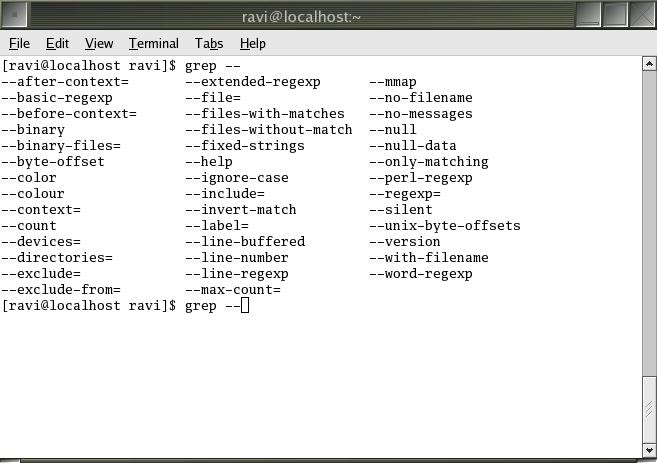
After installing the bash-completion package, fire up a terminal and type:

$ grep --

... followed by two TABs and you get all the options that can be passed to the grep command (see figure). This works for any command in linux. Now you don't have to remember all those options that need be passed to the programs any longer.

bash completion
Also read:
Bash Shell Shortcuts
Special Shell Variables

Selasa, 30 Agustus 2005

Bash Shell Shortcuts

Bash, which is the default shell in Linux contains a whole lot of key bindings which makes it really easy to use . The most commonly used shortcuts are listed below :

____________CTRL Key Bound_____________
Ctrl + a - Jump to the start of the line
Ctrl + b - Move back a char
Ctrl + c - Terminate the command
Ctrl + d - Delete from under the cursor
Ctrl + e - Jump to the end of the line
Ctrl + f - Move forward a char
Ctrl + k - Delete to EOL
Ctrl + l - Clear the screen
Ctrl + r - Search the history backwards
Ctrl + R - Search the history backwards with multi occurrence
Ctrl + u - Delete backward from cursor
Ctrl + xx - Move between EOL and current cursor position
Ctrl + x @ - Show possible hostname completions
Ctrl + z - Suspend/ Stop the command
____________ALT Key Bound___________
Alt + < - Move to the first line in the history
Alt + > - Move to the last line in the history
Alt + ? - Show current completion list
Alt + * - Insert all possible completions
Alt + / - Attempt to complete filename
Alt + . - Yank last argument to previous command
Alt + b - Move backward
Alt + c - Capitalize the word
Alt + d - Delete word
Alt + f - Move forward
Alt + l - Make word lowercase
Alt + n - Search the history forwards non-incremental
Alt + p - Search the history backwards non-incremental
Alt + r - Recall command
Alt + t - Move words around
Alt + u - Make word uppercase
Alt + back-space - Delete backward from cursor

----------------More Special Keybindings-------------------

Here "2T" means Press TAB twice

$ 2T - All available commands(common)
$ (string)2T - All available commands starting with (string)
$ /2T - Entire directory structure including Hidden one
$ 2T - Only Sub Dirs inside including Hidden one
$ *2T - Only Sub Dirs inside without Hidden one
$ ~2T - All Present Users on system from "/etc/passwd"
$ $2T - All Sys variables
$ @2T - Entries from "/etc/hosts"
$ =2T - Output like ls or dir